How to listen to audio
Opening the Audio player
Selecting an interval triggers the Audio player to appear.
You can select intervals by clicking:
- Points on the scatter plot
- Intervals in the Calendar panel
- Data points in the Temporal panel (continuous plot mode)
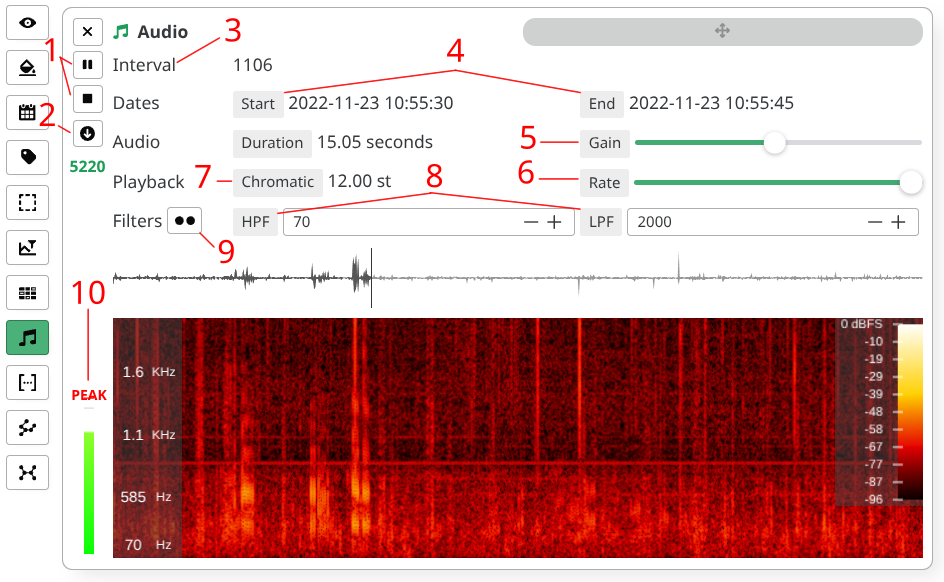
Audio controls
The Audio panel provides the following controls:
-
Playback controls (1)
- Play, Pause, Stop buttons in sidebar
-
Download audio (2)
- Downloads the raw unfiltered audio file
-
Context switching (3)
- Click on "Interval" to cycle between File and Site definitions
-
Copy dates (4)
- Click on date/time headers to copy to clipboard
-
Gain adjustment (5)
- Adjust playback volume
-
Playback rate (6)
- Slider shows absolute rate in Hz
- Click the mode header (7) to cycle between:
Absolute[0, 2]Speed[-90%, 200%]Chromatic[~-40st, 12st] (semitones)
-
Spectral filters (8)
- Adjust high-pass and low-pass filters to recompute spectrogram
- Click filter headers to reset to your configuration's band settings
- Click icon (9) to lock filters to current playback rate
-
VU Meter with peak detection (10)
- Real-time volume level indicator
- Shows current audio level and peak values
- Helps identify clipping or low-volume issues
info
Low pass filters are capped at the Nyquist frequency (half the sample rate).
tip
In Settings panel, you can adjust:
- Filter slopes
- Spectrogram FFT window size, color scale and label display/positioning.