How to configure a campaign
Opening the Campaign module
- Open the
 standalone app
 - Click on
Campaign > Configurebutton
The welcome screen will display.
Loading files
Load your audio files by performing:
- Click on the dropzone in gray
- Or drag-n-drop your folder containing audio files onto it
- Or load an existing configuration file by clicking on the
Loadbutton at the top.
Once done, you will be automatically redirected to the Settings screen.
You can also import older v13 .xlsx configurations.

Settings screen
In this tab, you can interact with:
- General settings
- Shared settings (optional timezone, RAM limit, computations)
- UI settings (time ranges for calendar browsing)
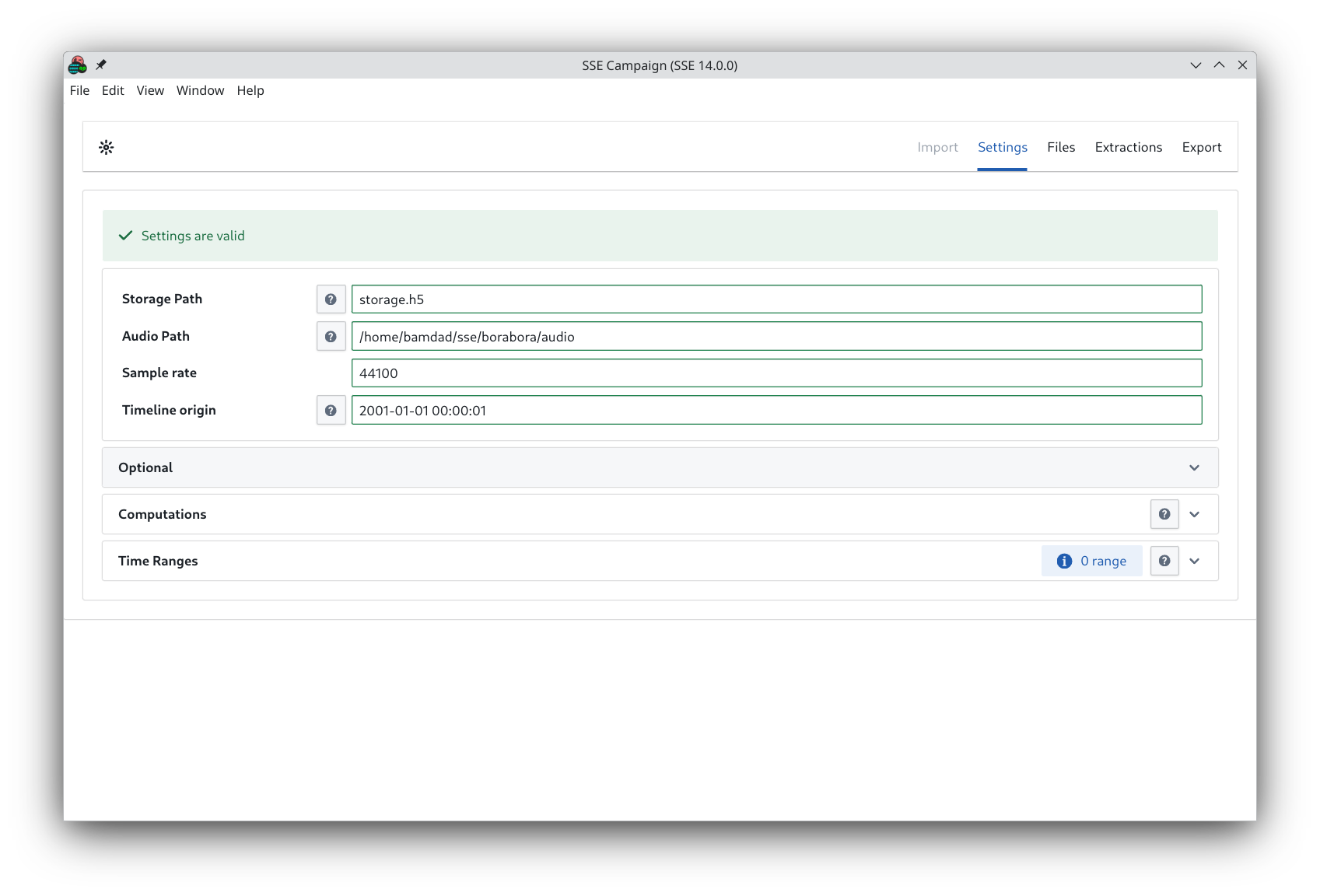
Use the inline help for further information by clicking on buttons.
Files screen
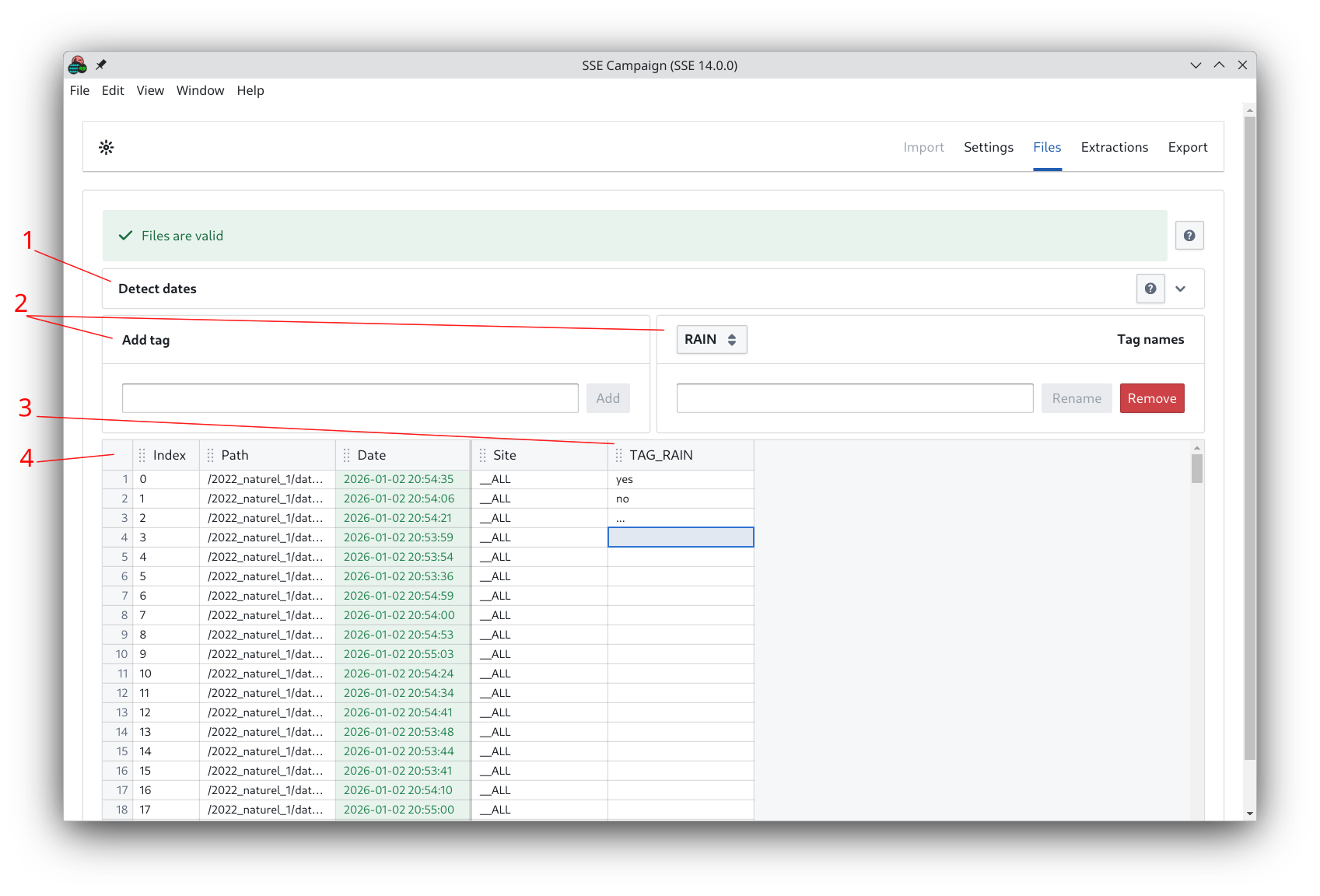
Here, you can:
- Detect dates according to the audio file names (1)
- Add, change, delete tags (2)
- Fill tag values, change tag order... (3)
- Select the whole table by clicking on 4
- You can then
ctrl+cand paste into Excel for advanced edition - Then select all your Excel table and paste it back to the Campaign table
- You can then
- To access all table shortcuts, press
?on your keyboard
Extractions screen
In this tab, you will be able to create Extractions.
An Extraction is an ensemble of parameters that will define the data
extraction pipeline later on.
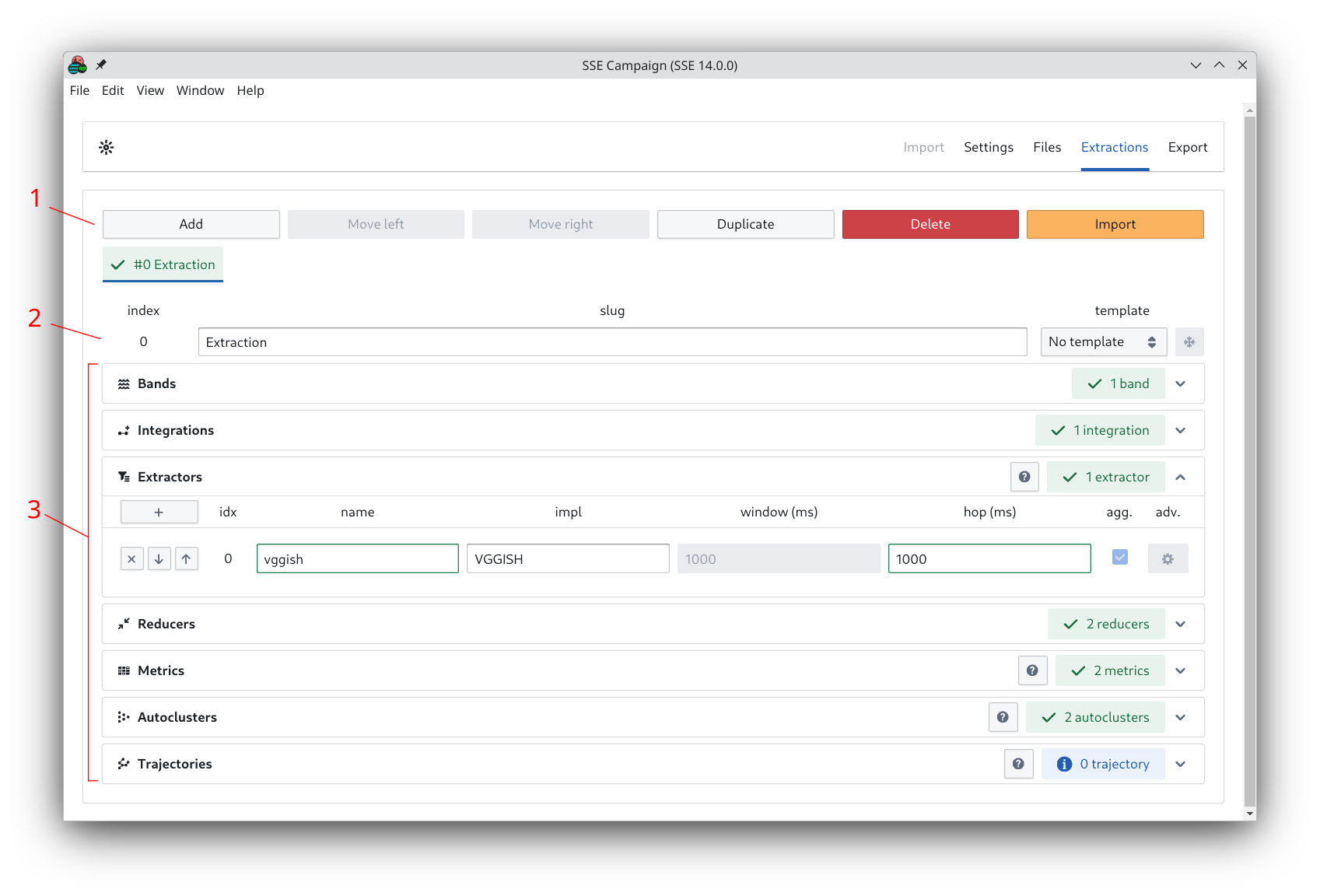
The screen is divided in three sections:
- Extraction management (1)
- Add, move, duplicate, delete extractions
- Import extractions from other existing configurations
- Extraction title and templating (2)
- Parameters (3)
- Refer to inline for advanced help
Export screen
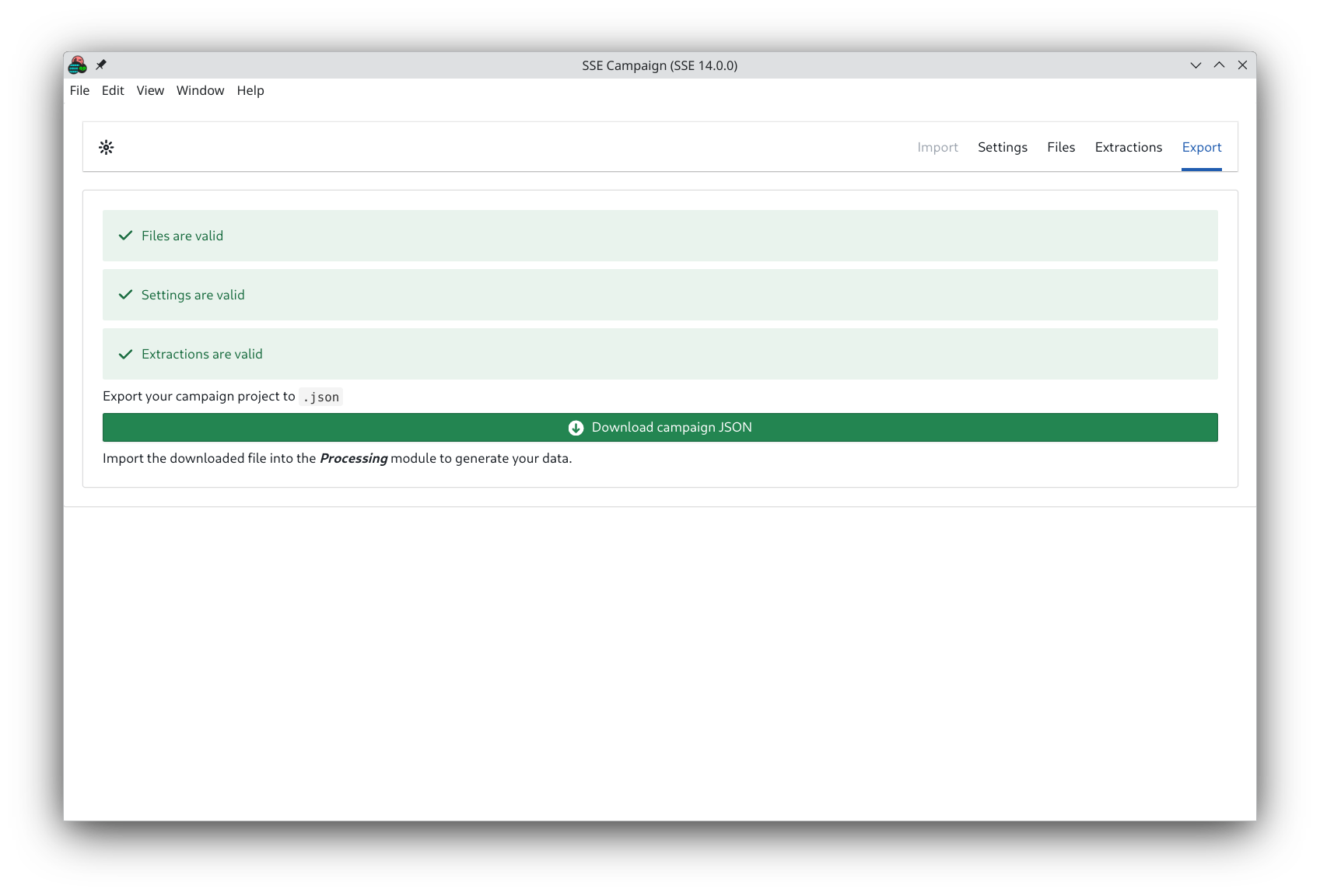
Download your configuration to a .json file that you
will use to the feed the Processing module with.
You can still download an "invalid" configuration to save an ongoing configuration.
Beware that this will likely result in errors if you decide to feed it to the Processing module.
.json files are just fancy text files.
Meaning you can open your configurations in your favorite text editor to quickly change settings and values.
While this is obviously risky, validation checks will be performed at any app module boundary.
