Installation
Processing CLI tool
- Windows 11
- Ubuntu 24
- macOS 15
- Install Python 3.11 with Chocolatey
- Open PowerShell with administrator privileges
- Run the Chocolatey installation command
- Wait for completion
- Install Python using the following command
choco install python --version=3.11.9 -y
-
Download the installation script
-
Double click on the script to install
GPU acceleration requires WSL2. For Windows native installation, only CPU processing is available.
To enable GPU support, install SSE in WSL2 instead, then run sse_install_cuda.
See WSL2 setup guide.
-
Open a terminal
-
Install Python 3.11 with the following command
sudo add-apt-repository -y ppa:deadsnakes/ppa && \
sudo apt install -y python3.11 python3.11-distutils python3.11-dev python3-pip python3.11-venv && \
python3.11 --version
-
Navigate to your user defined folder
-
Download installation script
wget -q https://github.com/sound-scape-explorer/sound-scape-explorer/releases/download/v14.0.14/sse-processing-14.0.14.sh && \
chmod +x sse-processing-14.0.14.sh
- Run installation script
./sse-processing-14.0.14.sh
# or from your file browser: right-click > Run as a Program
After installation, run sse_install_cuda to enable CUDA acceleration.
See CLI Commands for details.
- Open terminal
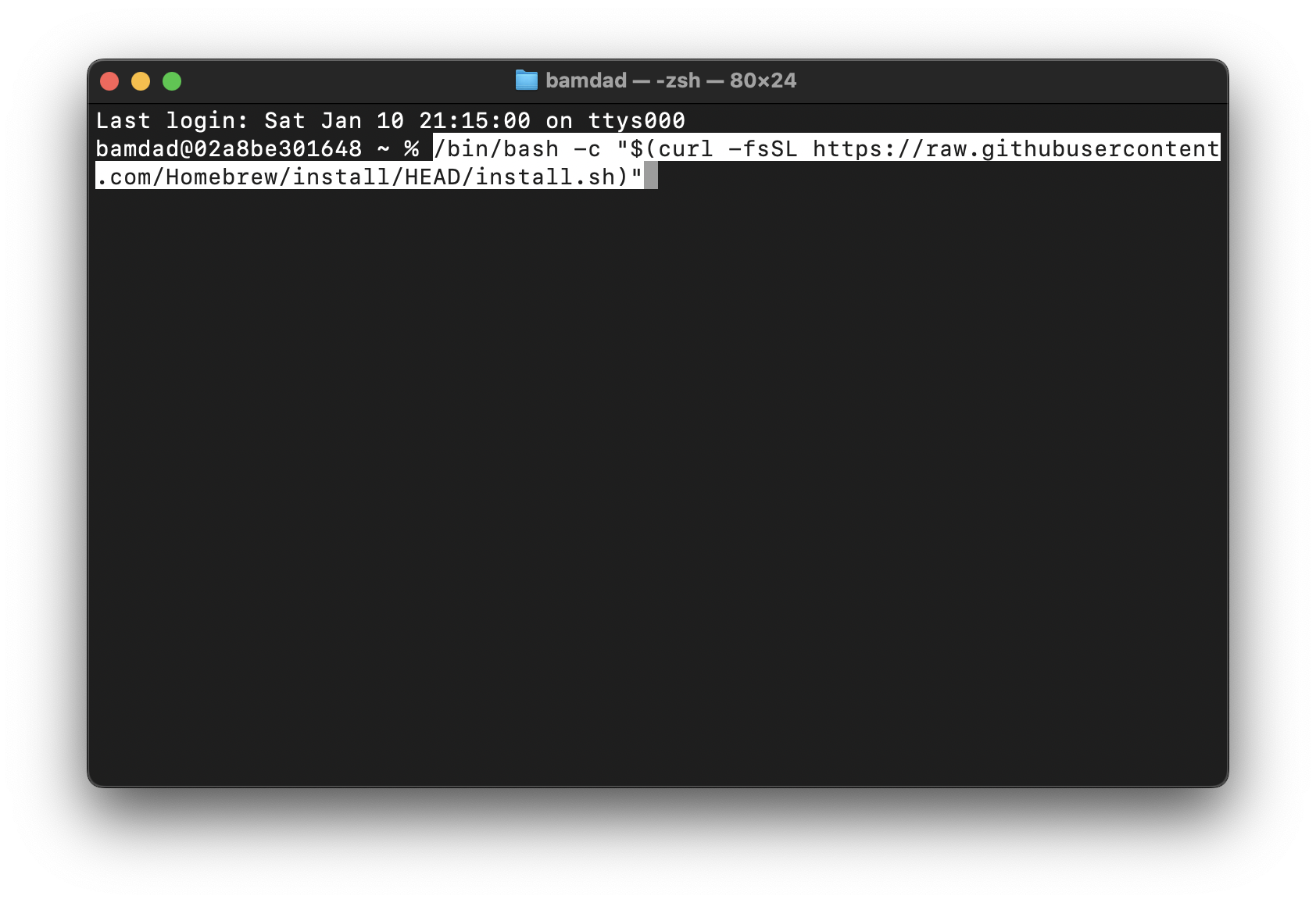
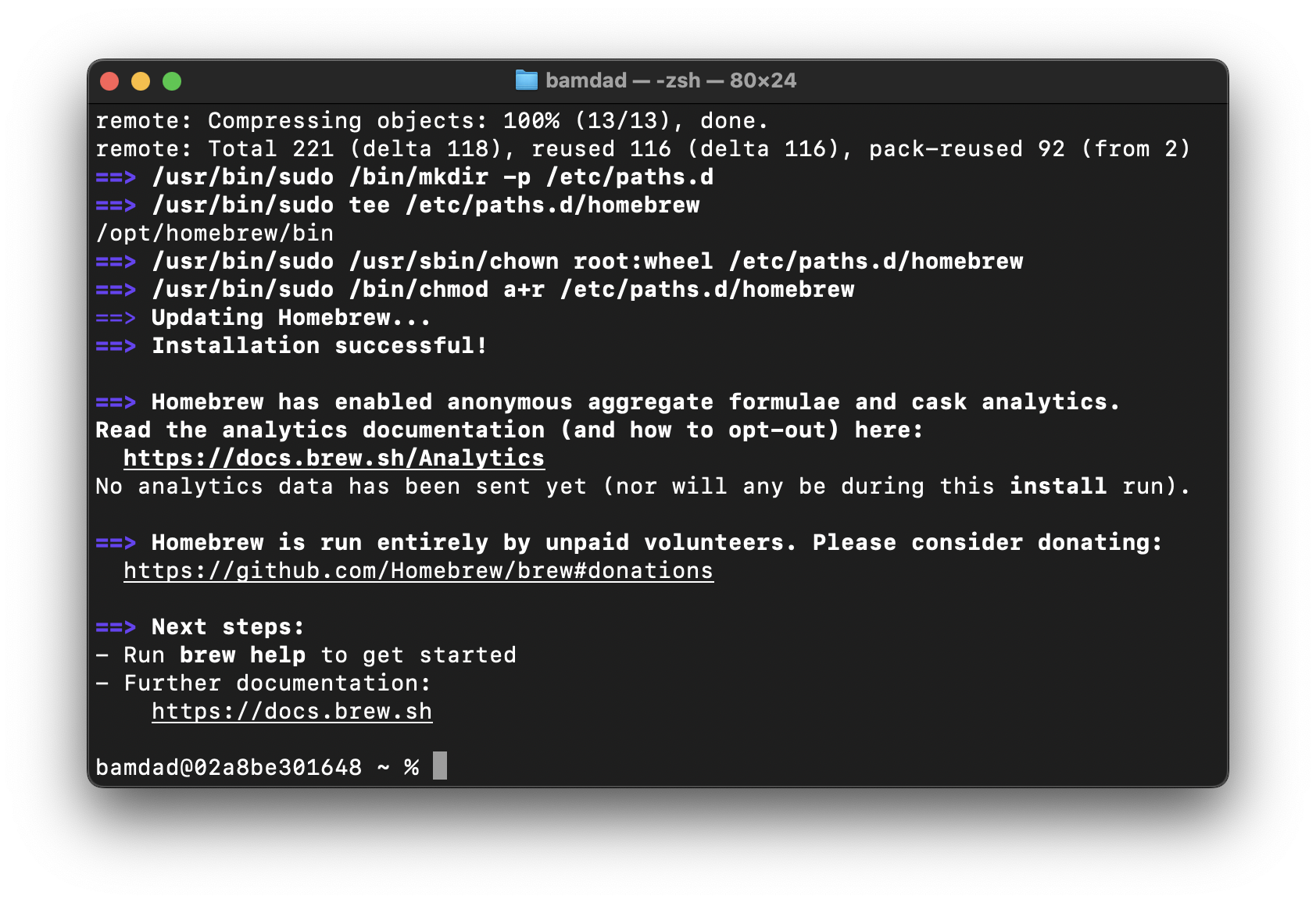
- Install Homebrew
/bin/bash -c "$(curl -fsSL https://raw.githubusercontent.com/Homebrew/install/HEAD/install.sh)"
- Install Python 3.11
brew install python@3.11
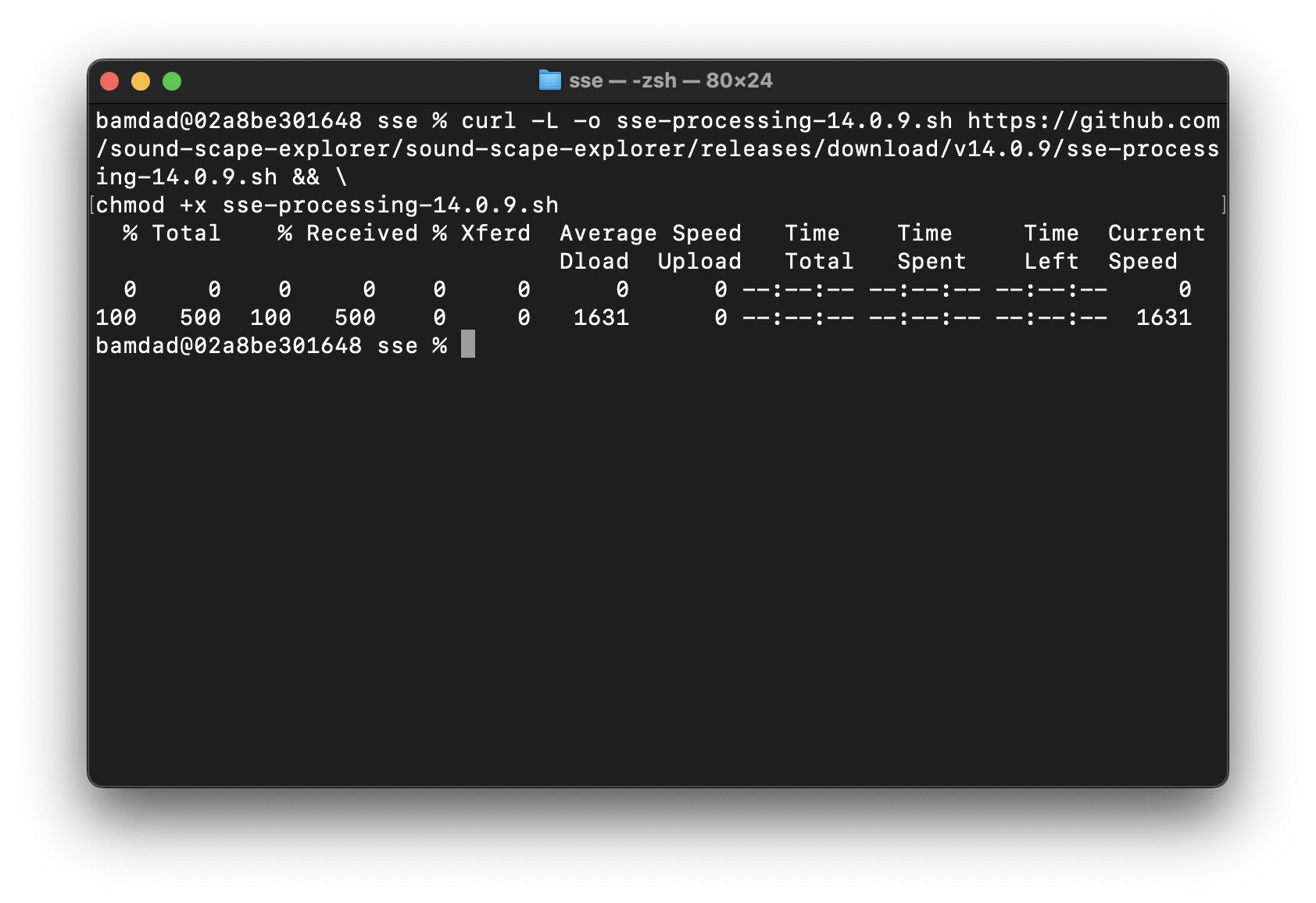
- Download installation script
curl -L -o sse-processing-14.0.14.sh https://github.com/sound-scape-explorer/sound-scape-explorer/releases/download/v14.0.14/sse-processing-14.0.14.sh && \
chmod +x sse-processing-14.0.14.sh
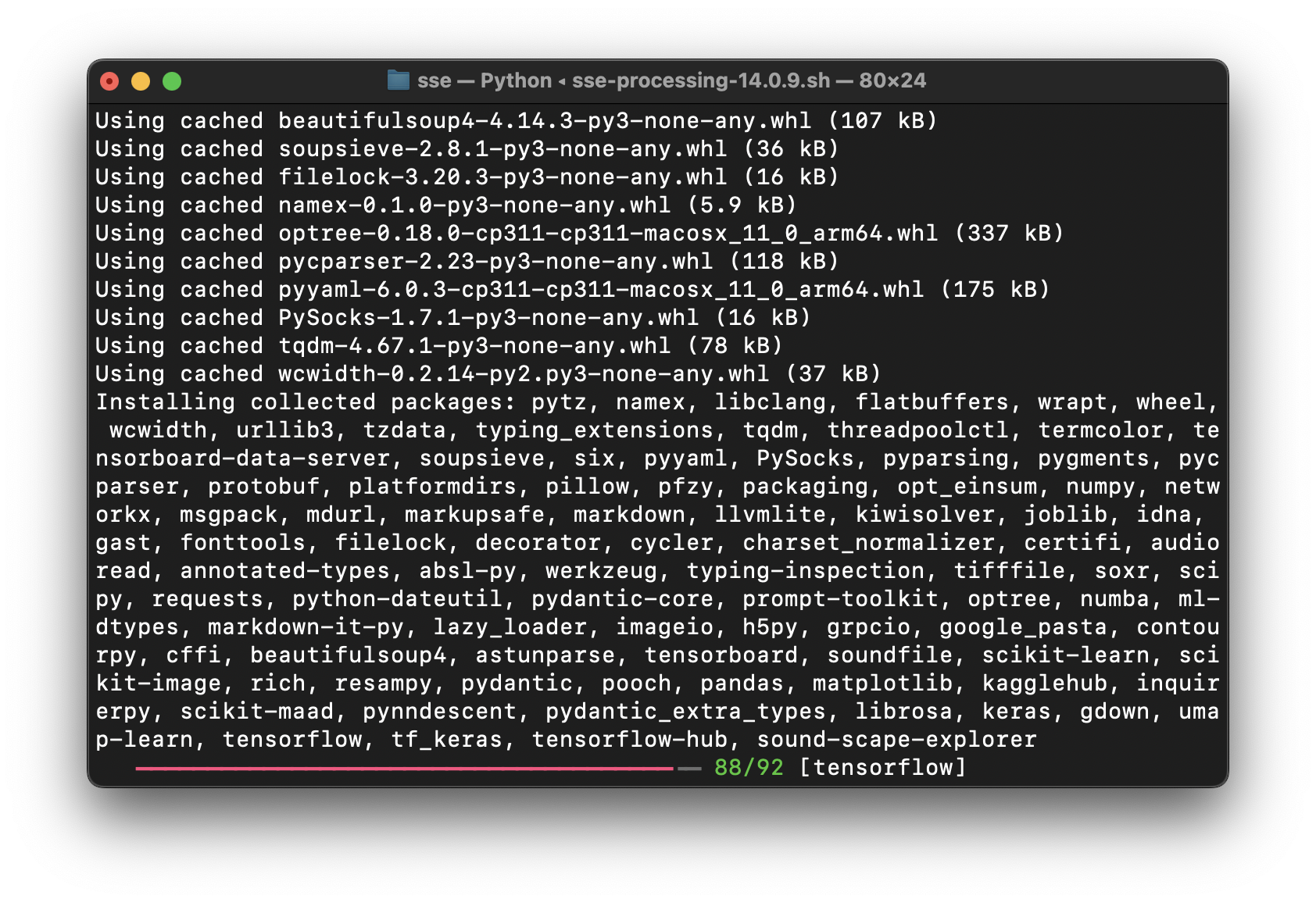
- Run installation script
./sse-processing-14.0.14.sh
macOS Finder does not support directly opening shell scripts. You must run the script from Terminal each time.
- Before installing Homebrew
- After installing Homebrew
- Installing Python 3.11
- Downloading installation script
- Running installation script

Desktop application
- Windows 11
- Ubuntu 24
- macOS 15
Download and run sound-scape-explorer-14.0.14.exe
Run the following command in your terminal.
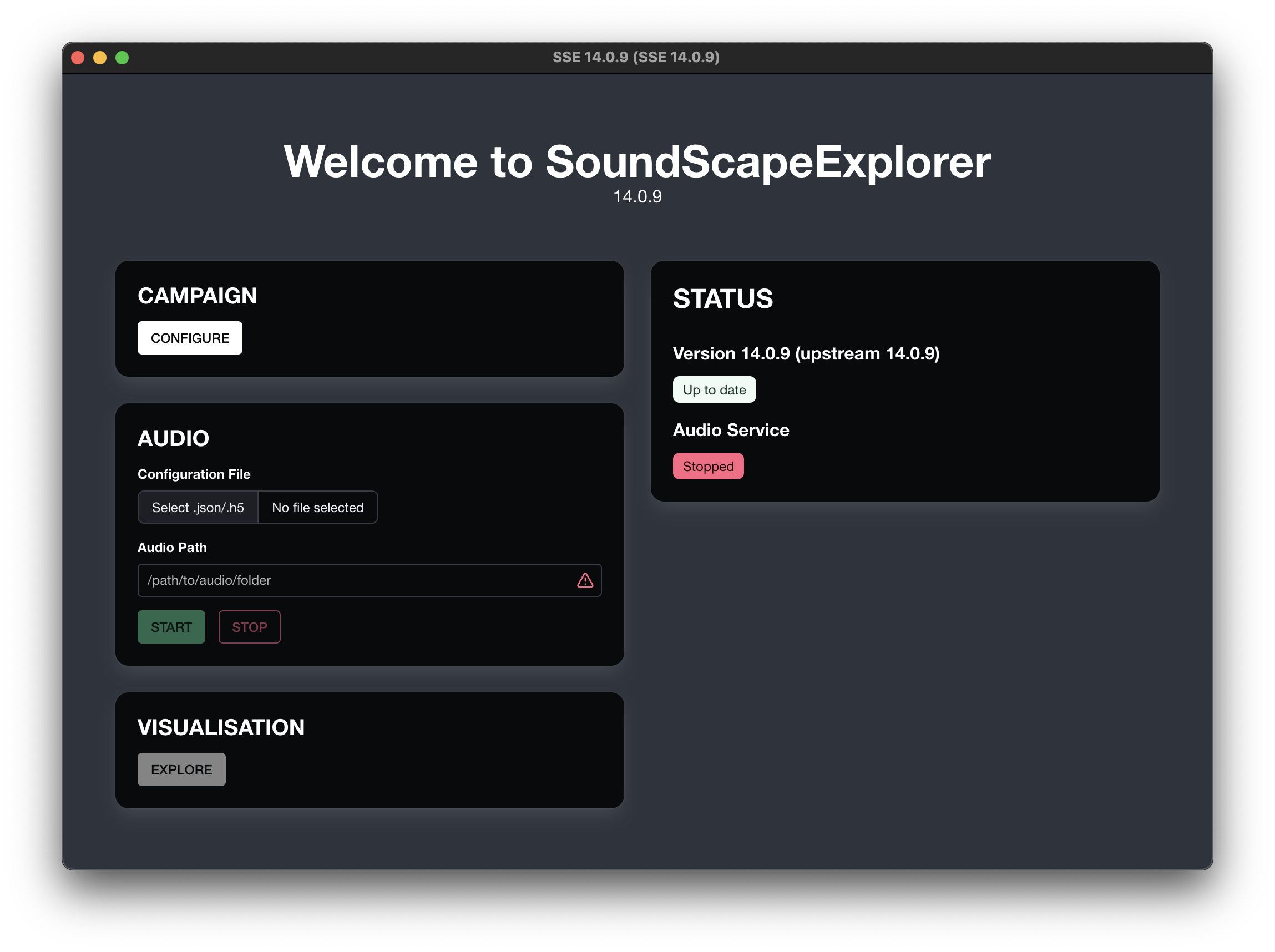
You will then have access to sound-scape-explorer application.
sudo -v && \
wget https://github.com/sound-scape-explorer/sound-scape-explorer/releases/download/v14.0.14/sound-scape-explorer-14.0.14.deb && \
sudo apt install ./sound-scape-explorer-14.0.14.deb && \
rm -f sound-scape-explorer-14.0.14.deb && \
sudo -k
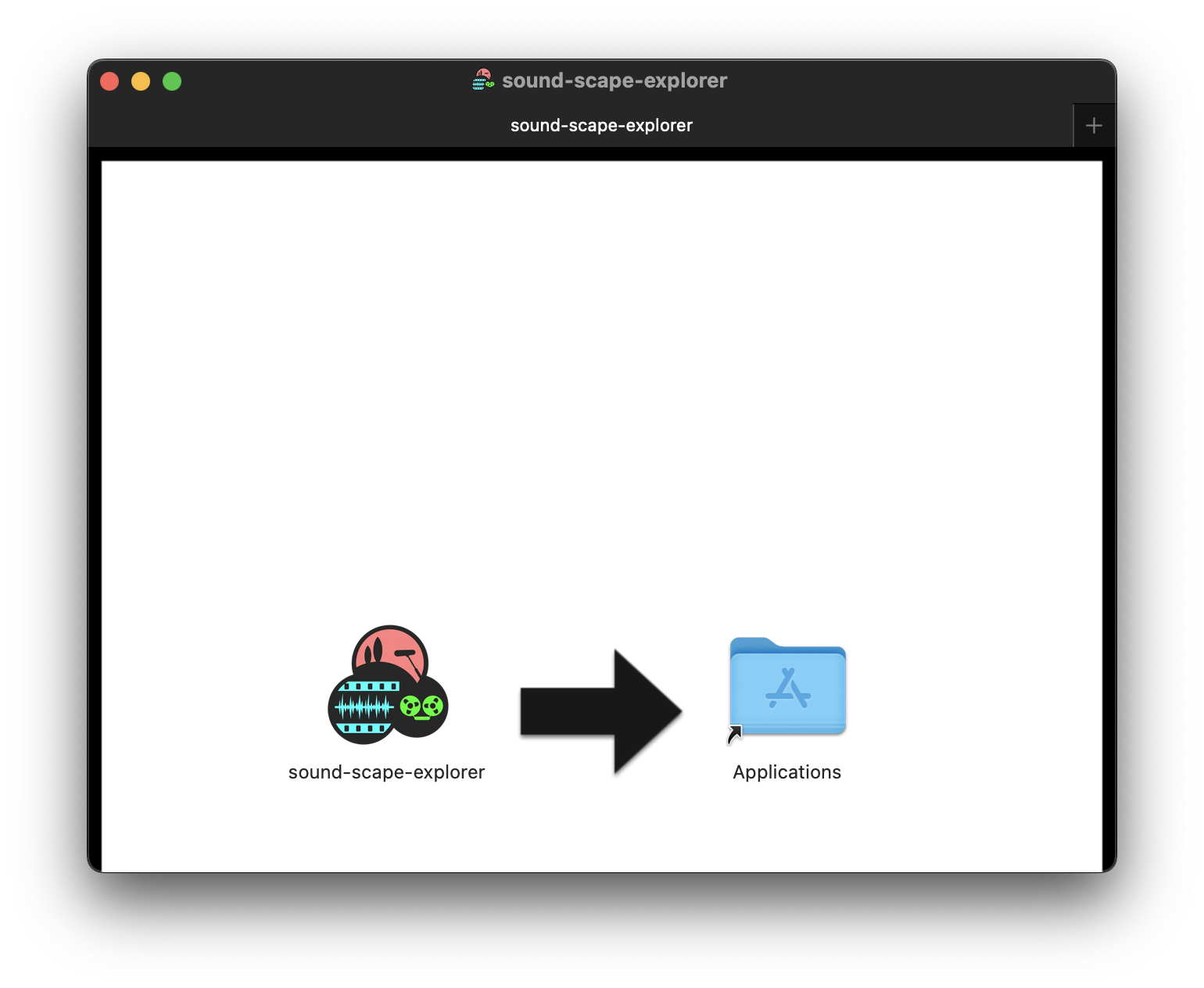
Download and install sound-scape-explorer-14.0.14.dmg
- Drag-n-drop application
- Opening the standalone app
macOS may block the app with a "damaged" error due to Gatekeeper.
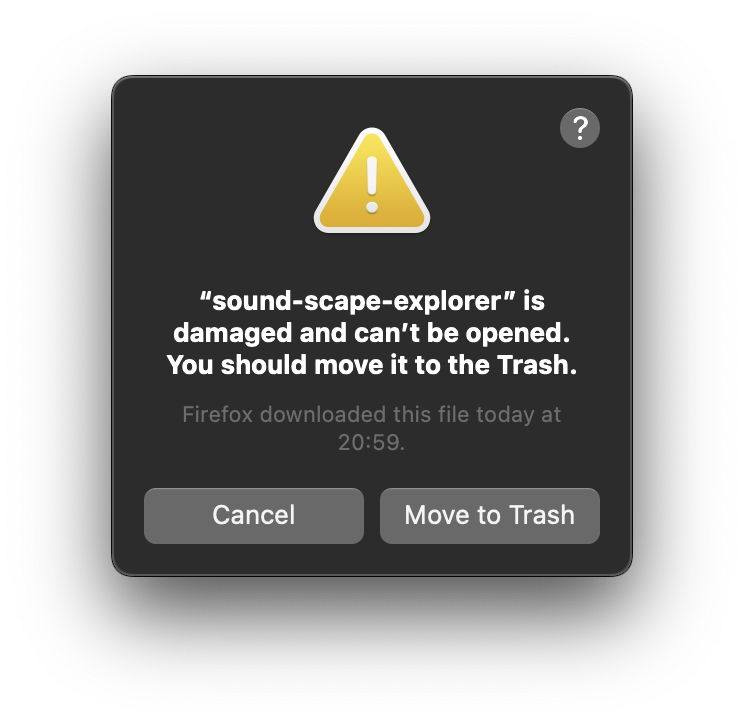
Run this command to fix it:
xattr -cr /Applications/sound-scape-explorer.app
Then open the app normally.